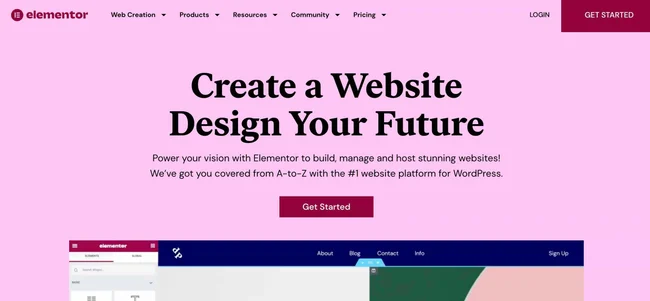
Building a professional website used to require hiring a developer or learning complex code. Not anymore. Elementor has completely changed the game — it’s a powerful drag-and-drop page builder for WordPress that lets anyone design a stunning, fully functional website visually. Whether you’re building a business site, portfolio, blog, or online store, Elementor makes it accessible and enjoyable.
Here’s a complete guide to designing a professional website using Elementor, step by step.
Step 1: Install WordPress and Elementor
Before anything else, you’ll need a WordPress site. Choose a reliable hosting provider like Bluehost, SiteGround, or Kinsta, and install WordPress with one click from your hosting dashboard.
Once WordPress is set up, go to Plugins → Add New, search for “Elementor,” and install it. The free version is surprisingly capable, but Elementor Pro is worth considering — it unlocks the Theme Builder, advanced widgets, WooCommerce integration, popup builder, and hundreds of premium templates.
Step 2: Pick the Right Theme
Elementor works with most WordPress themes, but for the best experience, pair it with a theme built specifically for compatibility and speed. The top choices are:
- Hello Elementor — The official theme by Elementor. It’s ultra-lightweight and designed to let Elementor handle all the design work.
- Astra — Fast, flexible, and widely used with Elementor.
- GeneratePress — Another lightweight option with great performance.
Avoid using feature-heavy themes alongside Elementor, as they can conflict and slow things down.
Step 3: Plan Your Website Structure
Before you start designing, take a few minutes to plan. Think about what pages your website needs — typically a Home, About, Services, Portfolio, Blog, and Contact page. Sketch out a rough idea of what each page should communicate and what action you want visitors to take.
Having a clear structure in mind before you open Elementor will save you a lot of time and help you make smarter design decisions.
Step 4: Import a Professional Template
You don’t have to design from a blank canvas. Elementor offers a massive library of free and pro templates, including full website kits designed for specific industries like photography, coaching, restaurants, agencies, and more.
To use a template, open any page with Elementor, click the folder icon, and browse the Template Library. Choose a kit that fits your style, preview it, and import it with one click. All the sections, layouts, and design elements are brought in instantly — you just replace the placeholder content with your own.
Step 5: Learn the Drag-and-Drop Editor
The Elementor editor is split into two sections — the widget panel on the left and the live canvas on the right. Everything you add to your page is built using three layers:
- Sections — The outermost container that holds your layout.
- Columns — Divide sections into multiple columns.
- Widgets — The actual content blocks like headings, images, buttons, videos, forms, and more.
Simply drag a widget from the left panel and drop it onto the canvas. Click any element to select it and edit its content, style, and advanced settings from the left panel. Changes appear instantly on the canvas — no refreshing needed.
Step 6: Set Up Global Styles for a Consistent Look
One of the most important steps for a professional-looking website is consistency. Elementor’s Global Settings (found under the hamburger menu → Site Settings) lets you define:
- Global Colors — Set your primary, secondary, and accent colors. These apply across your entire site and make branding effortless.
- Global Fonts — Choose your heading and body fonts. Elementor integrates with Google Fonts, giving you hundreds of options.
- Global Spacing — Control default padding and margins to keep layouts balanced.
Setting these up first means every new element you add will automatically follow your brand style without extra effort.
Step 7: Design Key Pages
With your global styles in place, start building your core pages:
Homepage — This is your first impression. Include a strong hero section with a headline, subheading, and call-to-action button. Follow it with sections highlighting your services, testimonials, and a contact prompt.
About Page — Tell your story. Use a mix of text, images, and perhaps a timeline or team section to build trust and connection.
Services or Portfolio Page — Showcase what you offer. Use image galleries, cards, or grid layouts to present your work clearly and attractively.
Contact Page — Add a contact form (Elementor has a built-in form widget in Pro), your email, phone number, and optionally a Google Maps embed.
Step 8: Make It Fully Responsive
Your website must look great on all devices — desktop, tablet, and mobile. Elementor makes this easy with its responsive editor. At the bottom of the editor, switch between device views and adjust any element specifically for that screen size.
Common things to adjust for mobile include font sizes, image sizes, column stacking, and button alignment. Always spend time reviewing the mobile view before publishing — a large portion of your visitors will be on their phones.
Step 9: Use the Theme Builder (Elementor Pro)
If you have Elementor Pro, the Theme Builder is a game changer. It lets you design your site’s header, footer, blog post layout, archive pages, and even 404 page — all visually with Elementor.
This means every part of your website, not just individual pages, can have a fully custom design. A well-designed header and footer alone can make your entire site look significantly more polished and professional.
Step 10: Optimize for Speed and SEO
A beautiful website still needs to be fast. A few important things to keep in mind:
- Compress images before uploading or use a plugin like Smush or ShortPixel.
- Limit animations and motion effects — they look nice but can slow down your site.
- Use a caching plugin like WP Rocket alongside Elementor for faster load times.
- Add SEO metadata to every page using a plugin like Yoast SEO or Rank Math — write clear titles and meta descriptions.
Speed and SEO work together. A fast, well-optimized site ranks better and keeps visitors engaged longer.
Step 11: Preview, Test, and Publish
Before going live, preview your site thoroughly. Check every page on desktop and mobile, test all your forms and buttons, and make sure all links work correctly. Ask a friend or colleague to browse through and give honest feedback.
When everything looks good, publish your pages and make your site live. You can always come back and refine things — great websites are never truly “finished,” they evolve over time.
Final Thoughts
Elementor has genuinely democratized web design. With the right theme, a solid plan, and a bit of creativity, you can build a website that looks like it was designed by a professional agency — without spending thousands of dollars. The key is to keep your design clean, your content clear, and your user experience smooth.
Start building today, and don’t be afraid to experiment. The more you use Elementor, the faster and more confident you’ll become.